How to Make a Photo Talk with AI (Step-by-Step Guide)
Turning a static portrait into a talking video used to require cameras, actors, and an animation team.
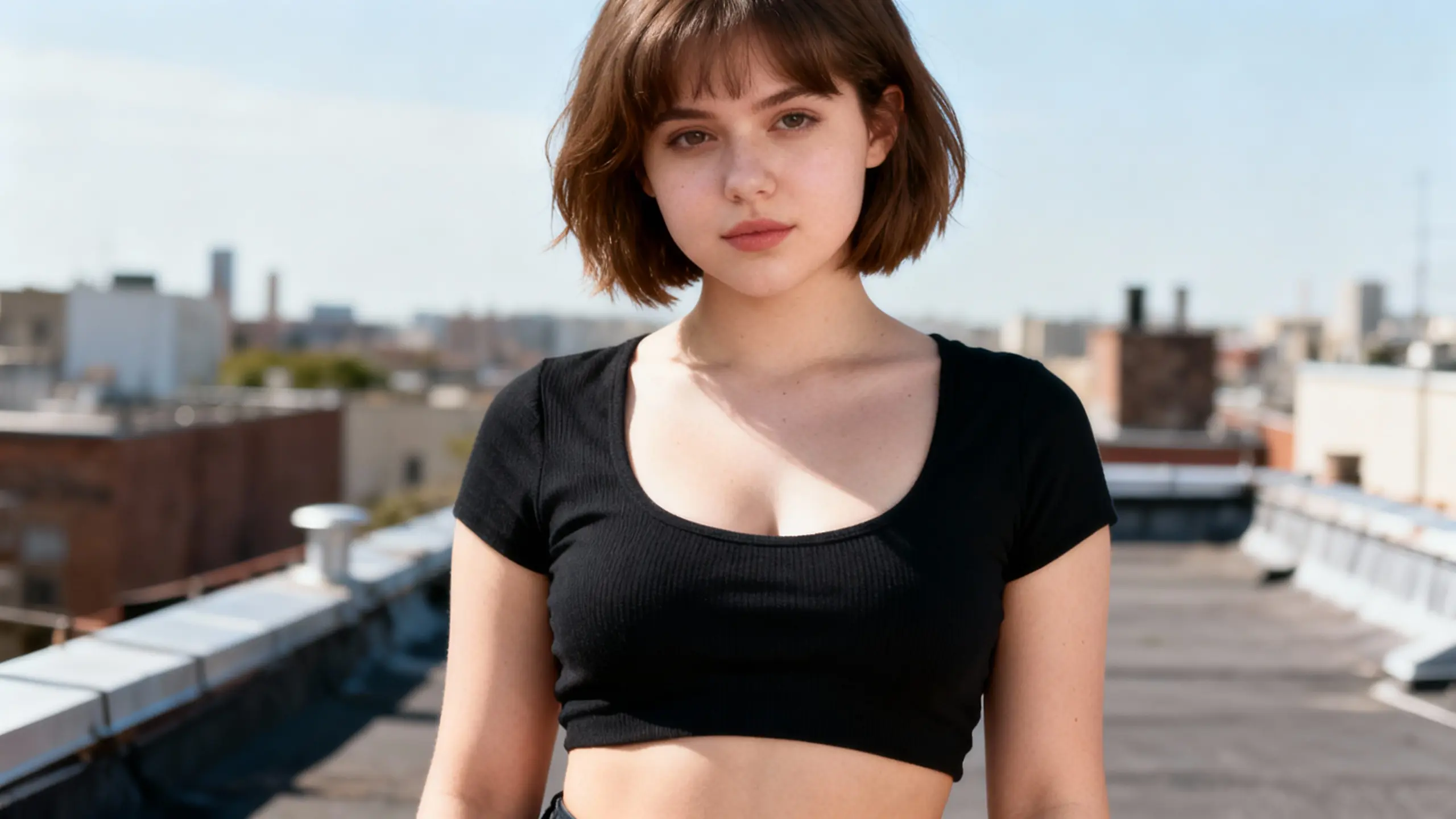
Now you can make a photo talk with nothing more than:
- one image
- one audio file
- an AI talking-video engine
In this guide, you'll learn:
- what a "talking photo" video actually is
- why simple mouth animation often looks fake
- how Infinite Talk AI uses sparse-frame video dubbing to animate the whole frame
- a practical, step-by-step workflow for how to animate a photo to talk
- best practices to keep your AI characters from sliding into uncanny valley
What Is a "Talking Photo" Video?
A talking photo video is a clip where:
- you start from a single picture (portrait, illustration, or character art)
- you provide a voice track (recorded or generated)
- AI generates a video of that picture talking, with:
- lips forming the right shapes for each sound
- head and eyes reacting to emphasis
- subtle changes in expression that match the speech
In other words:
You turn a still image into a natural, lip-synced talking video.
Early tools mostly did this by editing just the mouth region. They inpainted a tiny patch around the lips while everything else stayed frozen. For quick memes, that can be enough. For anything longer, it quickly looks wrong.
Why Simple Mouth Animation Isn't Enough
Most "talking photo" apps still do what we call mouth-only dubbing:
- they track the mouth
- they warp or repaint that small region to roughly match the audio
- the head, eyes, and body stay almost perfectly still
This creates the classic talking sticker effect:
- the voice may sound energetic, but the face hardly moves
- emotional beats in the script don't line up with visible changes in expression
- over 10–20 seconds, the mismatch becomes distracting and breaks immersion
Mouth-only animation is fine for:
- 3-second reaction memes
- quick jokes in chat apps
It is not fine when you need:
- explainers and tutorials
- intros for serious YouTube channels
- online course content
- brand or character videos that people watch for more than a few seconds
If you want a talking photo to feel performed instead of mechanically lip-edited,
the whole frame has to respond to the audio — not just the lips.
That's exactly what sparse-frame video dubbing is designed to do.
If you want the deeper technical version, see the research write-up on sparse-frame video dubbing.
Mouth-only lip sync (legacy tools)
Full-frame AI talking photo (Infinite Talk AI)
How to Animate a Photo to Talk with Infinite Talk AI
Infinite Talk AI is a sparse-frame, audio-driven video dubbing engine.
It was originally built to dub long videos, but the same architecture works beautifully for talking photos.
Instead of only animating a mouth patch, the model generates the entire frame for each moment in time.
From Single Image to Full-Frame Performance
When you upload a picture, Infinite Talk AI treats that image as a keyframe:
- it encodes identity (who the person is: facial structure, hairstyle, clothing)
- it captures style (lighting, colors, background, camera framing)
When you add your audio, the model uses the speech to drive:
- lip shapes for each phoneme (visemes)
- jaw, cheek, and eye motion
- head nods, turns, and micro-gestures
- subtle changes in posture over time
The result is a full-frame performance:
- the lips sync to the words
- the face and upper body react to emphasis
- the camera feel stays true to the original photo
Sparse Keyframes & Streaming Architecture
Under the hood, Infinite Talk AI uses a streaming architecture with sparse keyframes:
- the system keeps a small set of reference frames as soft anchors
- it generates new frames in overlapping chunks
- a short context window of previous frames keeps motion continuous
This design is what lets the engine:
- scale from short clips to effectively infinite sequences
- keep identity stable over long segments
- avoid the "chunky" jumps you see in simpler image-to-video models
You can read more about the streaming side in Infinite-Length Streaming Architecture.
Soft Reference Control (No Rigid Pose Copying)
Many reference-driven models treat keyframes as hard constraints:
the model keeps copying the same pose from the reference, so the character barely moves.
Infinite Talk AI instead uses Soft Reference Control:
- keyframes act as guidance for identity and scene style
- the generator is still free to move the head, eyes, and body to act out the audio
That's why your photo doesn't just "blink and flap its mouth" —
it actually performs the speech.
The idea is described in more detail in Soft Reference Control.
Step-by-Step: How to Make a Photo Talk with AI
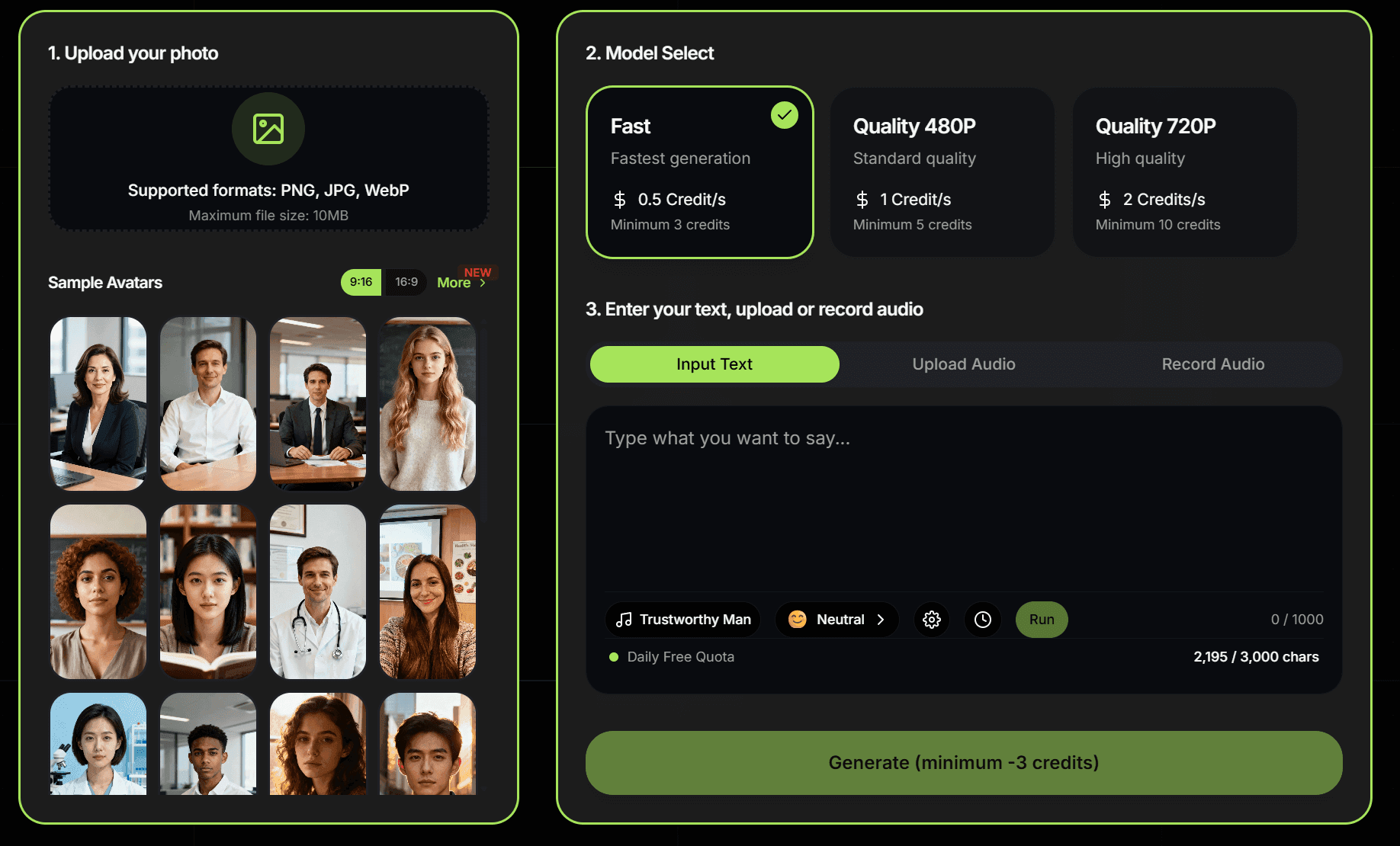
Let's walk through a concrete workflow using Infinite Talk AI.
The steps are generic enough that you can adapt them to your own pipeline.
Step 1 – Choose a Good Photo
Pick a picture that:
- shows the full face clearly
- has eyes open and roughly facing the camera
- has decent lighting (not too dark, not blown out)
- is free from heavy motion blur or extreme fisheye distortion
For professional content:
- avoid heavy face filters
- make sure you own the rights to use this picture
A resolution of at least 512–1024 pixels on the short edge is a good starting point.
Step 2 – Prepare the Audio
You can either record your own voice or use AI speech.
Option A – Record your own voice
- use a phone, USB mic, or any decent microphone
- record in a quiet room
- speak slightly slower and clearer than usual
- aim for 5–60 seconds for your first tests
Option B – Generate AI speech
- write your script
- run it through your favourite TTS or voice cloning tool
- export as
.wavor.mp3
General tips:
- avoid harsh cuts at the beginning/end of the file
- leave 0.3–0.5 seconds of silence at the start
- keep sample rate at 16 kHz or 44.1 kHz (typical defaults)
Step 3 – Upload Image and Audio to Infinite Talk AI
Inside Infinite Talk AI:
- Choose the Talking Photo workflow.
- Upload your photo.
- Upload your audio file.
- Configure basic options, for example:
- Resolution: 720p or 1080p
- Aspect ratio: usually keep it consistent with your uploaded photo
- Duration: usually matches the audio length
At this point you've told the system:
- "This is the identity and style" (image)
- "This is the performance" (audio)
Step 4 – Animate the Photo to Talk
Click Generate.
Behind the scenes, Infinite Talk AI:
- encodes the image as a sparse keyframe
- reads the audio to extract timing, emphasis, and rhythm
- uses its streaming generator to create a sequence of frames where:
- lips match each sound
- head and eyes react naturally
- posture evolves over time instead of staying frozen
You've just asked the engine to animate a photo to talk — not just to wiggle its mouth.
For short clips (5–30 seconds), generation typically finishes quickly, depending on your configuration and queue.
Step 5 – Review, Refine, and Export
When the talking-photo video is ready:
- Check lip sync
- look at consonants like P/B/M/F/V where lip closure or narrowing is obvious
- make sure key words line up with strong lip shapes
- Check emotion and motion
- does the character feel engaged or completely stiff?
- if it feels too flat, try a more expressive recording or TTS style
- Tweak and regenerate if needed
- adjust the script or pacing
- try a different base photo (slight smile vs fully neutral)
- regenerate until you're happy with the performance
- Download the final video
- export as MP4 in your chosen resolution
- upload to YouTube, TikTok, course platforms, or embed in your site
That's the full workflow for how to make a photo talk with AI using Infinite Talk.
Best Practices for Non-Creepy Talking Photos
Talking photos can be powerful — or deeply uncanny.
A few small choices make a big difference.
Start from the Right Expression
- use a neutral or slightly positive face
- avoid extreme expressions (screaming, crying) as the base image
- avoid weird angles where one eye is almost hidden
Match Voice and Face
- serious corporate headshot + goofy cartoon voice = weird
- casual selfie + ultra-formal monotone voice = also weird
- pick a voice tone that fits the character in the picture
Keep First Experiments Short
- start with 5–15 second clips
- once you're happy with the style, extend to longer pieces
This helps you iterate faster and avoid wasting compute on long clips you won't use.
Respect Identity & Rights
- only animate people and characters you're allowed to use
- for real humans, get their consent before publishing AI-generated talking videos
- follow your local regulations around likeness and synthetic media disclosure
Use Cases for AI Talking Photos
Once you can reliably make a picture talk, there are plenty of ways to use it.
YouTube Intros & Channel Hosts
Turn your channel avatar or headshot into a:
- quick intro host
- explainer for new subscribers
- evergreen trailer that you can update just by swapping the script + audio
Online Courses & Micro-Lessons
Instead of filming yourself every time:
- record or generate audio for your lesson
- animate a consistent instructor photo
- reuse the same identity across multiple modules and languages
TikTok / Reels / Shorts
Talking photos are perfect for:
- fast commentary on trends
- "react" content where a character responds to memes
- fictional characters or VTuber-style accounts
Brand & Product Mascots
If your brand has a mascot:
- animate the mascot to explain features or onboarding
- localise the same mascot into multiple languages with different audio tracks
Internal Communication
Use AI talking photos for:
- internal announcements
- training reminders
- quick experimental ideas where recording a full video would be overkill
And because the same engine powers full video dubbing, you can later:
- move from single-image talking photos
- to sparse-frame dubbing of entire video scenes
- without changing tools.
Why Use Infinite Talk AI Instead of Simple Talking-Photo Apps?
There are many apps that claim to make a photo talk.
Most of them share the same limitations:
- they only inpaint a small mouth region
- the head and body hardly move
- identity and style can drift between different generations
- longer clips become stiff and repetitive
Infinite Talk AI approaches the problem differently:
- Sparse-frame video dubbing
- keeps keyframes from your input as anchors
- animates the entire frame — lips, head, posture, and expressions — from the audio
- Streaming architecture for long clips
- designed to scale beyond short memes
- keeps motion continuous across overlapping chunks
- Soft reference control
- preserves identity and scene style
- doesn't lock the character into a single, copied pose
- Benchmark-driven
- the underlying research includes quantitative and human studies that measure lip-sync quality, identity stability, and motion naturalness
- details are available in the benchmarks report
If you want your talking photos to feel like real performances instead of animated stickers, building on a full-frame, audio-driven engine makes a huge difference.
FAQ: Common Questions About Making Photos Talk
How do I make a photo talk with AI?
Upload a clear portrait and a speech audio file into Infinite Talk AI, choose the Talking Photo workflow, set your resolution and aspect ratio, then generate. The engine uses sparse-frame video dubbing to animate the whole frame from the audio, not just the mouth.
Can I animate any picture to talk?
You'll get the best results with:
- clear front or 3/4-view faces
- good lighting and minimal blur
- faces that aren't heavily filtered or distorted
Illustrations and stylised art can also work as long as the facial features are distinct.
How long can an AI talking-photo video be?
For short intros and social clips, 5–30 seconds is ideal.
Infinite Talk AI uses a streaming architecture that scales to much longer segments, so once you're happy with the style you can extend to minute-long or multi-minute content using the same engine.
Does Infinite Talk AI only move the mouth?
No. Mouth-only animation is exactly what we try to avoid.
Infinite Talk AI animates:
- lips and jaw
- eyes and eyebrows
- head motion and subtle posture changes
All driven directly by the audio track.
Can I use AI talking photos in commercial projects?
As long as you have the rights to the image and audio and you respect local laws around likeness and synthetic media, you can use Infinite Talk AI for commercial projects. Always make sure real people whose faces you animate are aware and have given consent.
Ready to make your first photo talk?
Upload a picture, add your voice, and let Infinite Talk AI turn it into an identity-stable, lip-synced talking video.
Get Started